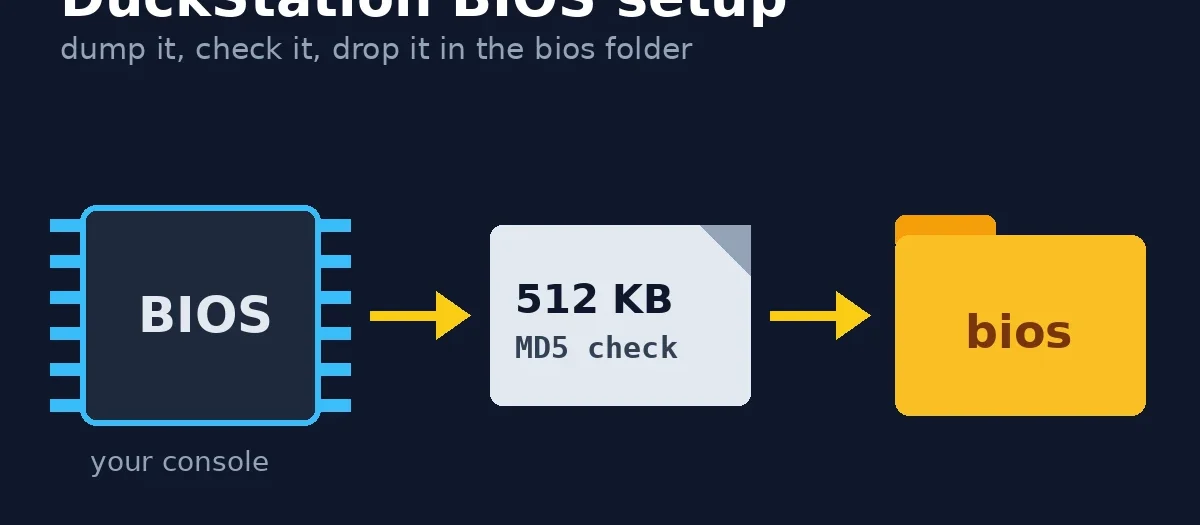
Quick answer: DuckStation needs a PlayStation BIOS, a 512 KB file dumped from a PS1 (or a 4 MB file dumped from a PS2) that you own. Put the file in DuckStation’s bios folder, not a subfolder: on Windows that is usually %LOCALAPPDATA%\DuckStation\bios, on macOS ~/Library/Application Support/DuckStation/bios and on Linux ~/.local/share/duckstation/bios. Then go to Settings > BIOS and click Refresh List. The file name does not matter, because DuckStation identifies a BIOS by its MD5 hash. If you have a choice, a v3.0 BIOS (SCPH-5500, 5501 or 5502) is the one DuckStation itself ranks first.
This page links no BIOS downloads. The BIOS is Sony’s copyrighted code. DuckStation’s README says a BIOS “is not provided with the emulator for legal reasons, you should dump this from your own console”, and its own error message adds that “borrowing doesn’t count”. The hashes further down are only for checking a dump you made yourself.
Affiliate links: if you buy through the Amazon links on this page we may earn a small commission at no extra cost to you. The only Amazon link here is a plain PC controller.
What does DuckStation need a BIOS for?
The BIOS is the PlayStation’s built-in system software: the boot screen, the memory card manager and the low-level routines games call. DuckStation emulates the console’s hardware but runs Sony’s real BIOS code on top of it, so without one it stops with this message (taken from its source code):
No BIOS image found for NTSC-U/C region. DuckStation requires a PS1 or PS2 BIOS in order to run. For legal reasons, you must obtain a BIOS from an actual PS1/PS2 unit that you own (borrowing doesn’t count).
DuckStation accepts three file sizes, according to bios.cpp in its source: 524,288 bytes (a PS1 BIOS), 4,194,304 bytes (a PS2 BIOS) and the size of a PS3 BIOS image. Any other size is rejected with a “size mismatch” error, which is the most common sign of a bad dump or a file you have renamed from something else.
Where does DuckStation look for the BIOS on each system?
DuckStation keeps everything in one user data folder and looks in a bios folder inside it. You can open the data folder from the menu with Tools > Open Data Directory, which is quicker than typing a path. These locations come from DuckStation’s README and source.
| System | Default BIOS folder | Notes |
|---|---|---|
| Windows (current builds) | %LOCALAPPDATA%\DuckStation\bios | Paste the path into File Explorer’s address bar |
| Windows (older installs) | Documents\DuckStation\bios | Older versions used Documents, and existing installs can keep it |
| Windows (portable) | bios next to the DuckStation .exe | Portable mode is on when a file called portable.txt sits next to the program |
| macOS | ~/Library/Application Support/DuckStation/bios | Needs macOS Ventura 13.3 or later |
| Linux (AppImage) | ~/.local/share/duckstation/bios | Or $XDG_DATA_HOME/duckstation/bios if you set that variable |
| Linux (old Flatpak) | ~/.var/app/org.duckstation.DuckStation/config/duckstation/bios | DuckStation now ships as an AppImage; the README explains how to move old Flatpak data |
| Steam Deck with EmuDeck | Emulation/bios | EmuDeck points DuckStation at its shared folder; its wiki says no PSX or PS1 subfolder |
| Android | The folder you choose in the setup wizard | The Android app is on Google Play; the README says no support is provided for it |
The rule that trips most people up: DuckStation only scans the BIOS folder itself. A file at bios/PS1/scph5501.bin or bios/psx/scph5501.bin is not found. Move it up one level.
You can also point DuckStation at a different folder. In Settings > BIOS, the BIOS Directory box (“DuckStation will search for BIOS images in this directory”) has Browse…, Open… and Reset buttons. The Install BIOS button copies a file you pick into the BIOS directory for you.
Which PS1 BIOS version should you use?
Any genuine BIOS from any region works, but they are not all equal inside DuckStation. When a region’s dropdown is left on Auto-Detect (the default), DuckStation picks from the files it found using a priority number stored in its source, and lower is better:
| BIOS | Consoles | Region | DuckStation priority | Why |
|---|---|---|---|---|
| v2.2 J, v3.0 J | SCPH-5000, SCPH-5500 | NTSC-J | 5 (best) | Preferred for Japanese games |
| v3.0 A | SCPH-5501, 5503, 7003 | NTSC-U/C | 5 (best) | Preferred for US games |
| v3.0 E | SCPH-5502, 5552 | PAL | 5 (best) | Preferred for European games |
| Most other v1.1 to v4.5 | Most other PS1 and PSone models | All | 10 | Fine |
| v4.4 and v4.5 E | SCPH-102 (PAL PSone) | PAL | 20 | “Additional regional checks that break import booting without fast boot” |
| v1.0 | SCPH-1000 (Japanese launch console) | NTSC-J | 50 | “Launch console BIOS is de-prioritized due to bugs” |
| PS2 BIOS (ROM0) | Any PS2 | Matches the console | 100 to 150 | Needs a dynamic fast boot patch |
| OpenBIOS | Open-source replacement | Any | 200 | Last resort; no fast boot support |
That table explains why guides keep naming scph5501.bin: it is a v3.0 NTSC-U BIOS, which DuckStation ranks top. But it only matters if you own more than one console. The BIOS from the console you actually have is the right one, and DuckStation prefers a known hash in the matching region before it looks at priority.
Do you need one BIOS per region?
Only if you play games from more than one region. DuckStation has three dropdowns in Settings > BIOS: “NTSC-J (Japan)”, “NTSC-U/C (US/Canada)” and “PAL (Europe, Australia)”. If it has no BIOS for a game’s region it falls back to another region’s BIOS and shows a warning that the “BIOS region does not match” and may cause issues. In practice most games run, but there are two catches:
- Japanese BIOSes and the late PAL PSone BIOS (SCPH-102) have region checks. DuckStation’s code says these cannot “slow boot” a disc from another region (that is, play the Sony boot animation and then start the game). Turn on Fast Boot in Settings > Console and DuckStation skips the BIOS check, which gets around it.
- PAL games with LibCrypt protection need a matching
.sbifile next to the disc image, with the same name. That is a copy protection issue, not a BIOS one, but it shows up as the same “game will not work” symptom.
How do you dump a BIOS from your own console?
There are two routes. If you own a PS2, use that, because it is easier.
From a PS2 (easiest)
A PS2 BIOS is a valid BIOS for DuckStation (that is the 4 MB size it accepts). If you already dumped one for PCSX2, copy the 4 MB .rom0 file from that dump into DuckStation’s bios folder. The free biosdrain tool does the dump to a USB stick, and our PS2 BIOS guide for PCSX2 walks through the five ways to launch it (FreeMcBoot, FreeDVDBoot, Fortuna and more). DuckStation gives a PS2 BIOS a lower priority, so if you later add a PS1 dump it will use that instead.
From a PS1
You need to run a small homebrew program on the PS1 and get its output back to a PC. The usual tool is Shendo’s BIOS Dumper, and its README lists two ways:
- Run the dumper. The console needs to boot a burned CD: a modchip, a disc swap or an exploit such as Tonyhax International, which launches homebrew on an unmodified PS1 from a memory card save.
- Save to a memory card. The dumper splits the 512 KB BIOS into chunks and writes them as saves, so you need a card with 15 free blocks (the whole card).
- Copy the card to a PC with a memory card reader or adapter (the README lists tools such as MemcardRex, MemCARDuino and the DexDrive, or uLaunchELF on a PS2).
- Merge the saves back into one file with the tool supplied with BIOS Dumper, then check its size is exactly 524,288 bytes.
The alternative is a serial cable (a Net Yaroze cable or a home-made one) and the BIOSget program from the same README. Unirom users can also pull the BIOS over a USB-to-serial cable with its nops tool. Both are more work than the memory card route.
How do you check your BIOS dump is good?
Compare its MD5 hash with the known value. DuckStation does this itself: a recognised file is listed by model name in Settings > BIOS, and an unrecognised one gets an “unknown BIOS” warning that it may crash. To check by hand:
- Windows (PowerShell):
Get-FileHash .\yourfile.bin -Algorithm MD5 - macOS (Terminal):
md5 yourfile.bin - Linux:
md5sum yourfile.bin
| Version | Consoles | Region | MD5 |
|---|---|---|---|
| v1.0 | SCPH-1000 | NTSC-J | 239665b1a3dade1b5a52c06338011044 |
| v2.2 | SCPH-1001, 5003 | NTSC-U/C | 924e392ed05558ffdb115408c263dccf |
| v2.2 | SCPH-1002 | PAL | e2110b8a2b97a8e0b857a45d32f7e187 |
| v3.0 | SCPH-5500 | NTSC-J | 8dd7d5296a650fac7319bce665a6a53c |
| v3.0 | SCPH-5501, 5503, 7003 | NTSC-U/C | 490f666e1afb15b7362b406ed1cea246 |
| v3.0 | SCPH-5502, 5552 | PAL | 32736f17079d0b2b7024407c39bd3050 |
| v4.0 | SCPH-7000, 7500, 9000 | NTSC-J | 8e4c14f567745eff2f0408c8129f72a6 |
| v4.1 | SCPH-7001, 7501, 7503, 9001, 9003, 9903 | NTSC-U/C | 1e68c231d0896b7eadcad1d7d8e76129 |
| v4.1 | SCPH-7002, 7502, 9002 | PAL | b9d9a0286c33dc6b7237bb13cd46fdee |
| v4.3 | SCPH-100 (PSone) | NTSC-J | 8abc1b549a4a80954addc48ef02c4521 |
| v4.5 | SCPH-101 (PSone) | NTSC-U/C | 6e3735ff4c7dc899ee98981385f6f3d0 |
| v4.5 | SCPH-102 (PSone) | PAL | de93caec13d1a141a40a79f5c86168d6 |
DuckStation’s full list has over 100 entries, including every PS2 BIOS it knows. If your hash does not match any of them, the dump is probably incomplete. Redo it before blaming the emulator.
Why does DuckStation say “No BIOS image found”?
Work through these in order. The causes come from DuckStation’s own error messages and documentation.
| Symptom | Likely cause | Fix |
|---|---|---|
| “No BIOS image found for … region” | File is in a subfolder or the wrong data folder | Use Tools > Open Data Directory, put the file directly in bios, then click Refresh List |
| BIOS shows in the folder but not the list | You added it while DuckStation was open | Click Refresh List in Settings > BIOS, or restart |
| “size mismatch” error | Truncated or merged wrongly; or a .zip, .7z or .rar | Extract it. A PS1 BIOS must be exactly 524,288 bytes |
| “Unknown BIOS” warning | Corrupt or modified dump | Check the MD5 against the table, and dump again |
| Japanese or import game hangs at the logo | BIOS region check | Enable Fast Boot in Settings > Console, or add a BIOS from the game’s region |
| Wrong BIOS used | Region dropdown set to a specific file | Set the dropdown back to Auto-Detect |
| Portable copy ignores your BIOS | portable.txt missing or misnamed | Create an empty portable.txt next to the program |
If none of those fit, check DuckStation is current. It is a rolling release on GitHub: the latest build at the time of writing was published on 25 October 2026.
Getting the rest of DuckStation set up
Once the BIOS is found, add your game folder in Settings > Game List and DuckStation scans for disc images in the formats it supports (bin/cue, CHD, ECM, MDS/MDF, CCD and unencrypted PBP). Our guide to emulating PS1 games on PC covers controllers, upscaling and memory cards. DuckStation reads most PC controllers through SDL; a pad with a PlayStation-style layout such as the 8BitDo Ultimate 2C Wireless maps cleanly. If you want to play on a real PS1 instead, see our guide to PS1 to HDMI converters, and for where the legal line sits with BIOS files and games, see legal ways to emulate retro games.
Sources: DuckStation README and source code (bios.cpp, settings.cpp and the Qt BIOS settings page, master branch, read 28 October 2026); Shendo’s BIOS Dumper README; biosdrain; EmuDeck wiki; Tonyhax International documentation. We did not test every dump method for this article; the steps follow the tools’ own documentation.
FAQ
Is it legal to download a PS1 BIOS for DuckStation?
No, not in the UK, the US or most other countries. The BIOS is Sony’s copyrighted software, and DuckStation’s own message says you must get it from a PS1 or PS2 you own and that borrowing one does not count. Dumping the BIOS from your own console for personal use is the route the emulator’s developers point to.
Which BIOS is best for DuckStation?
The one dumped from your own console. If you own several, DuckStation ranks the v3.0 BIOSes (SCPH-5500 for Japan, SCPH-5501 for the US and SCPH-5502 for Europe) highest, and the Japanese v1.0 launch BIOS lowest because of bugs.
Does the BIOS file name matter in DuckStation?
No. DuckStation reads each file in its bios folder and identifies it by its MD5 hash, so scph5501.bin, ps-30a.bin and mybios.bin all work. Some front ends, such as EmuDeck’s BIOS checker, do look for specific names.
Can DuckStation use a PS2 BIOS?
Yes. DuckStation accepts a 4 MB PS2 BIOS (the ROM0 file from a biosdrain dump) and applies a fast boot patch to it. It ranks PS2 BIOSes below PS1 ones, so a PS1 dump is used first if you have both.
Where is the DuckStation BIOS folder on Windows?
In current builds it is %LOCALAPPDATA%\DuckStation\bios. Older installs may use Documents\DuckStation\bios, and portable copies use a bios folder next to the program. Tools > Open Data Directory in DuckStation opens the right folder.
Why does DuckStation not see my BIOS?
Usually because the file is in a subfolder (DuckStation only scans the bios folder itself), is still zipped, or is the wrong size. Move it into the bios folder, extract it, check it is 524,288 bytes for a PS1 BIOS, then click Refresh List in Settings > BIOS.
Do I need a separate BIOS for PAL and NTSC games?
Not strictly. DuckStation will use another region’s BIOS with a warning. Japanese BIOSes and the late PAL PSone BIOS have region checks that can stop import discs from booting, which Fast Boot gets around.