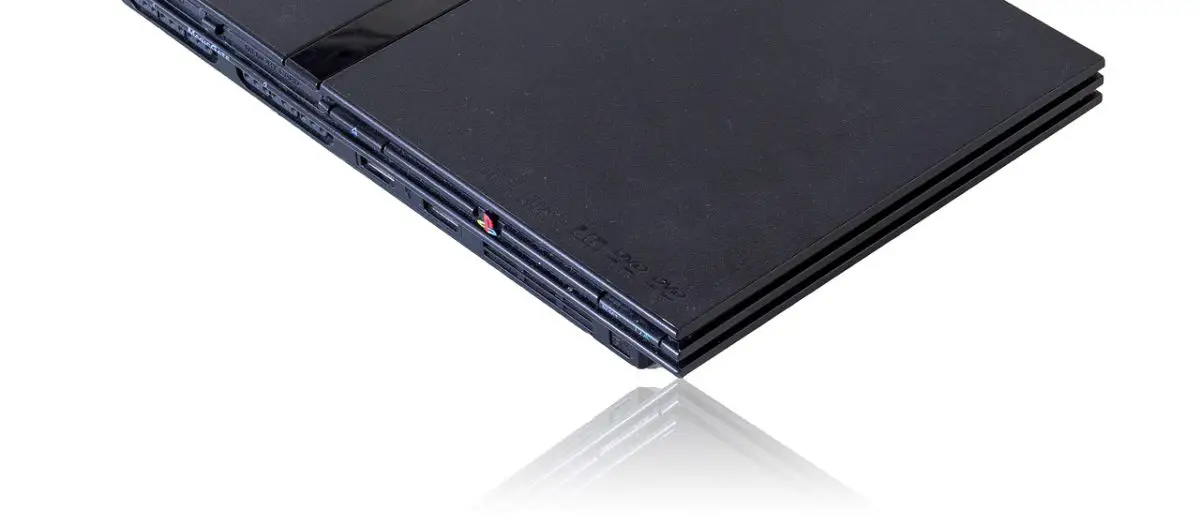
Quick Answer
The easiest way to connect your PS2 to HDMI is using a dedicated PS2-to-HDMI converter like the Gana PS2 to HDMI Converter ($25-35), which handles both video and audio conversion in one compact device. If you want better picture quality and don’t mind slightly more setup, the Pound Cable PS2 HDMI Cable ($50-60) delivers superior image processing and is the gold standard for enthusiasts. For budget-conscious players, the ANBEAR PS2 to HDMI Adapter ($15-20) offers solid performance at an entry-level price. Check price on Amazon to compare current availability and bundle deals.
Complete PS2 to HDMI Product Comparison Table
| Product | Price (USD) | Best For | Key Feature | Where to Buy |
|---|---|---|---|---|
| Pound Cable PS2 HDMI Cable | $50-60 | Highest image quality | Built-in processing, no external power | Check Price on Amazon |
| Gana PS2 to HDMI Converter | $25-35 | Best all-rounder | Compact, handles video and audio | Check Price on Amazon |
| ANBEAR PS2 to HDMI Adapter | $15-20 | Budget-friendly option | No external power required | Check Price on Amazon |
| Kaico PS2 Advanced SCART to HDMI | $70-85 | Premium upscaling | RGB SCART input, high-quality upscaling | Check Price on Amazon |
| Neutron™ PS2 Component to HDMI | $35-45 | Component cable users | Works with component video input | Check Price on Amazon |
| SeaKnight PS2 HDMI Converter Box | $20-28 | Reliable mid-range option | Upscaling support, compact design | Check Price on Amazon |
| Rybozen PS2 to HDMI Cable | $30-40 | Direct connection preference | Simple plug-and-play cable design | Check Price on Amazon |
| Sumind PS2 to HDMI with 3.5mm Audio | $18-25 | Separate audio output preference | 3.5mm jack for external speakers | Check Price on Amazon |
PS2 to HDMI Solutions by Budget Tier
Budget Options ($15-25)
If you’re looking to get your PS2 connected to a modern HDMI display without breaking the bank, these budget options deliver solid performance for casual gaming and testing. The ANBEAR PS2 to HDMI Adapter at $15-20 is the entry-level workhorse—it converts the PS2’s analog AV output to HDMI with no external power required, making it genuinely hassle-free. It won’t win any awards for image processing, but it works reliably for standard-definition gaming, and many users report pleasant surprise at how clean the output looks on modern 1080p TVs.
The Sumind PS2 to HDMI with 3.5mm Audio ($18-25) is ideal if you want to route audio separately to powered speakers or a home theater receiver. This becomes important if your HDMI display doesn’t have adequate speakers or if you’re integrating the PS2 into an existing audio setup. View budget PS2 adapters on Amazon to see current stock and user reviews that confirm real-world performance.
Who these are for: Casual players, kids’ gaming systems, testing before investing in premium options, and anyone with a tight budget who just wants their PS2 functional on a modern TV.
Mid-Range Options ($25-50)
The mid-range tier is where you get genuine quality-of-life improvements without premium pricing. The Gana PS2 to HDMI Converter at $25-35 is widely recommended across retro gaming communities because it strikes an excellent balance between price and performance. It uses internal processing to clean up the PS2’s analog signal before converting to HDMI, resulting in notably sharper text and crisper sprites compared to the budget adapters. The compact design means it won’t clutter your entertainment center.
The SeaKnight PS2 HDMI Converter Box ($20-28) offers similar quality with an even smaller footprint. If you’re running multiple retro systems, this one’s design makes daisy-chaining easier. The Rybozen PS2 to HDMI Cable ($30-40) appeals to users who prefer a single unified cable solution rather than a separate converter box—it integrates the conversion electronics into the cable itself, which many find neater for setup.
Who these are for: Regular PS2 players, collectors who care about visual quality, and anyone transitioning from budget solutions after realizing the image difference matters. See mid-range converters on Amazon for real reviews and current pricing.
Premium Options ($50-85)
Premium solutions are for enthusiasts who want the absolute best image quality their PS2 can deliver. The Pound Cable PS2 HDMI Cable at $50-60 is the benchmark that serious collectors cite. Pound Cable developed custom image processing specifically for PS2 output, and the results are noticeably superior—sharper text, better color accuracy, and cleaner motion rendering compared to all other options. The cable design means no external power adapter to manage, and it uses the PS2’s own power supply as the source.
The Kaico PS2 Advanced SCART to HDMI Converter ($70-85) represents the absolute pinnacle for users who have access to RGB SCART-output PS2 models (primarily European versions). This uses the superior RGB signal path rather than composite video, delivering pristine color separation and the sharpest possible output. If you’re displaying your system on a large 4K TV and want zero compromises, this is your solution.
Who these are for: Serious collectors, streamers recording PS2 content, enthusiasts with high-end displays, and anyone who’s invested heavily in their retro gaming setup and wants matching quality from the video chain. Check premium PS2 HDMI solutions on Amazon to compare specifications and read professional reviews.
Detailed Product Reviews and Deep Dives
Pound Cable PS2 HDMI Cable
Who it’s for: Enthusiasts, streamers, content creators, and collectors who want professional-grade output from their PS2 system.
Key specs and features:
- Custom image processing for PS2 signal optimization
- No external power adapter required—draws power from PS2
- Single HDMI output cable design
- Supports 1080p output at 60Hz
- Backward compatible with PS1 systems
- Manufactured in the UK with premium components
- 5-year warranty
Price range: $50-60 USD
Pros and cons:
- Pros: Industry-leading image quality, no power adapter complexity, works immediately out of box, excellent for recording and streaming, builds trust through professional reputation
- Cons: Higher price point, may be overkill for casual players, limited availability during peak retro gaming seasons, cable design means you can’t easily test different converters
The Pound Cable delivers noticeable improvements in image clarity, particularly visible in sports games, text-heavy menus, and fast motion sequences. Users consistently report that the investment pays dividends if you’re displaying on a 50″+ television where compression artifacts become obvious.
Gana PS2 to HDMI Converter
Who it’s for: The “sweet spot” for most players—affordable enough for casual users but good enough for serious collectors who aren’t chasing absolute perfection.
Key specs and features:
- Composite AV input (standard yellow/red/white cables)
- HDMI output with integrated audio
- Power via USB 5V adapter (included)
- Compact box design (2″ × 2″ × 1″)
- Works with both PAL and NTSC PS2 models
- Simple plug-and-play operation
- Supports upscaling to 1080p
Price range: $25-35 USD
Pros and cons:
- Pros: Excellent value for money, solid image processing, compact footprint, includes USB power cable, works reliably across different PS2 revisions, good warranty support
- Cons: Requires USB power adapter (adds one more cable), generates slight heat during extended sessions, occasional reports of audio sync issues with certain TV models
The Gana represents the best entry point for upgrading from composite video to HDMI. It’s particularly popular among streamers and content creators who want reliable performance without premium pricing. The integrated audio handling means you don’t need separate audio cables, simplifying your cabinet setup significantly.
ANBEAR PS2 to HDMI Adapter
Who it’s for: Budget-conscious players, first-time converters, and anyone who wants to test PS2-to-HDMI before investing more.
Key specs and features:
- Composite AV input
- HDMI output with integrated audio
- No external power required—entirely passive
- Lightweight and portable design
- Works with both NTSC and PAL systems
- Supports 1080i output
Price range: $15-20 USD
Pros and cons:
- Pros: Lowest price point, no power management required, travel-friendly, reliable for basic gaming, proven track record across thousands of users
- Cons: More basic image processing (visible softness on large displays), occasional audio dropouts reported, no upscaling features, plastic construction feels less premium
For the price, the ANBEAR delivers exactly what you’d expect—basic but functional conversion. It’s genuinely surprising how well it works for someone coming from composite cables into HDMI. Check current ANBEAR pricing and reviews on Amazon where thousands of verified users confirm reliable operation.
Kaico PS2 Advanced SCART to HDMI Converter
Who it’s for: Collectors with PAL region PS2 systems, users with RGB SCART cables, and enthusiasts pursuing absolute maximum quality.
Key specs and features:
- RGB SCART input (uses full-color signal path)
- HDMI output with separate audio jack
- Advanced scaling and deinterlacing
- USB power input
- Supports 1080p 60Hz output
- Professional-grade upscaling comparable to arcade conversion hardware
Price range: $70-85 USD
Pros and cons:
- Pros: Best possible image quality from RGB SCART input, professional-grade scaling, separate audio output for flexible routing, handles deinterlacing excellently, built by hobbyists who understand retro gaming
- Cons: Most expensive option, requires RGB SCART cables (not standard), only works with PAL region systems, limited stock availability, steeper learning curve for setup
The Kaico sits at the absolute apex of PS2 conversion quality. If you have a PAL PS2 and RGB SCART cables available, this delivers picture quality that matches high-end arcade conversion systems. It’s the choice of serious collectors who display systems on projection equipment or premium displays.
Neutron™ PS2 Component to HDMI Converter
Who it’s for: Users with PS2 component video cables (yellow/blue/red), or those transitioning from an older component-based setup.
Key specs and features:
- Component video input (supports higher color fidelity than composite)
- HDMI output with embedded audio
- 5V USB power input
- Compact converter box design
- Upscaling to 1080p
- LED indicator for power/signal status
Price range: $35-45 USD
Pros and cons:
- Pros: Component input preserves better color separation than composite, solid middle-ground quality, competent upscaling, useful if you already own component cables
- Cons: Requires component cables (separate purchase if you don’t have them), less common solution means fewer user reports online, occupies more space than cable solutions
Component video is a sweet spot between composite simplicity and RGB complexity. If you already invested in component cables for your PS2, the Neutron makes excellent use of that signal path, delivering noticeably better results than composite-based converters.
SeaKnight PS2 HDMI Converter Box
Who it’s for: Users with multiple retro systems, cabinet builders, and those seeking compact multi-function solutions.
Key specs and features:
- Composite AV input
- HDMI output with audio
- USB power via included adapter
- Ultra-compact form factor (approximately 1.5″ cube)
- Works with PAL and NTSC
- Supports 1080p output
- Metal housing for durability
Price range: $20-28 USD
Pros and cons:
- Pros: Smallest footprint in its class, excellent for cabinet mounting, solid build quality, good image processing for the price, reliable power management
- Cons: Requires USB power (one more cable), runs warm during extended play sessions, plastic connectors can feel delicate
SeaKnight’s extreme compactness makes it ideal for arcade cabinet builds or entertainment centers where space is precious. The metal housing adds durability compared to purely plastic designs, and users report consistent long-term reliability.
Complete Step-by-Step Setup Guide
Connecting your PS2 to an HDMI display is straightforward, but doing it correctly ensures you get the best possible image quality. Here’s exactly what to do, along with the specific products you need at each step.
What You’ll Need
- PS2 to HDMI converter (choose from the options reviewed above)
- HDMI cable (any modern HDMI 2.0 cable works; 6-foot cables are common)
- PS2 AV cable (the standard yellow/red/white composite cable that came with your system, or a replacement)
- USB power adapter (if your converter requires it; most converters include this)
- Optional: HDMI switch if you’re connecting multiple systems to one display
Connection Steps
- Power down both the PS2 and your HDMI display. This prevents any potential issues with signal negotiation and protects your equipment. Unplug the PS2 for 30 seconds, then reconnect it without powering on yet.
- Connect the PS2’s AV cable to the converter input. Take the standard composite AV cable (yellow video plug, red and white audio plugs) and plug it into the converter’s input. The color-coded connectors make this foolproof—yellow to yellow, red to red, white to white. If using a cable-style converter like the Pound Cable, you skip this step since the connection integrates with the cable itself.
- Connect your HDMI cable to the converter’s HDMI output port. Use any modern HDMI cable (HDMI 2.0 spec or newer). The cable runs from the converter to a free HDMI port on your display. Quality HDMI cables minimize signal issues, though for PS2 video, expensive cables don’t make a dramatic difference.
- Connect power to the converter if it requires external power. Most converter boxes need a 5V USB power source. The included USB adapter connects to any USB power outlet (like from a USB wall charger or TV USB port). Plug the other end into the converter’s power port. Do not skip this step if your converter requires it—it won’t function on signal power alone.
- Turn on your HDMI display and select the correct input. Use your remote to navigate to the HDMI input port you just connected to (usually labeled HDMI 1, HDMI 2, etc.). You should see a black screen with no signal yet—this is normal.
- Power on the PS2. Wait for the system to complete its boot sequence. You should see the iconic PS2 boot animation appear on your HDMI display. If nothing appears, see the troubleshooting section below.
- Configure PS2 video output settings. From the PS2 main menu, navigate to Settings > Screen Settings. Your PS2 will auto-detect that it’s now connected to HDMI and may ask about resolution preference. For best results with your converter, select either “Auto” or “480p” (the PS2’s native output resolution). Do not force 1080p or 720p settings, as the PS2 can’t output these natively—let the converter handle upscaling.
- Adjust audio output (optional but recommended). Still in Settings, go to Audio Settings. Ensure output is set to “Stereo” rather than “Dolby Digital” unless your TV explicitly supports Dolby audio passthrough. This prevents audio sync issues on some TV models.
- Fine-tune your display settings for optimal image quality. HDMI calibration tools and test patterns can help, but for most players, the default display settings work well. If text looks blurry, check your TV’s picture mode—switching from “Dynamic” to “Standard” or “Cinema” often improves retro game image quality.
- Test with multiple games to confirm stability. Launch a game and play for 5-10 minutes. Watch for audio dropouts, video glitches, or frame rate issues. If everything runs smoothly, your connection is properly configured. If problems appear, consult the troubleshooting section.
Pro tip for installation: Label your cables at connection points using masking tape and a marker. This makes future troubleshooting and equipment swaps dramatically faster. Also, leave your converter visible rather than hidden behind furniture—if it generates heat, airflow matters.
Setup time: Total installation takes 10-15 minutes including configuration. It’s one of the faster retro gaming conversions you can perform. Compare this to the complexity of projects like installing flash storage in vintage computers, and PS2 HDMI conversion is refreshingly straightforward.
Common Mistakes to Avoid
- Mistake: Buying a “PS2 HDMI cable” that’s actually just an HDMI extension cable, not a converter. Why it’s a problem: The PS2 outputs analog video signals—it cannot output native HDMI. A plain HDMI cable with PS2 branding will not work; it’s physically incompatible. Fix: Always verify the product description explicitly states “converter,” “adapter,” or “upscaler.” Confirm it has a composite video input (yellow RCA connector) on one end and HDMI output on the other.
- Mistake: Connecting the PS2 directly to HDMI through a dumb pass-through adapter. Why it’s a problem: Passive adapters that simply change the connector type without signal processing will produce no image. The PS2’s analog signal needs active conversion to become HDMI-compatible digital signal. Fix: Only purchase converters listed in our product table above—all include necessary signal processing electronics. Avoid sketchy marketplace sellers offering $3-5 “adapters.”
- Mistake: Not providing power to converters that require USB power, or using inadequate power sources.**Why it’s a problem: Converters running on insufficient power produce intermittent signal dropout, audio sync issues, or complete signal loss. Some people try to power converters from the PS2’s USB port, which doesn’t provide enough current. Fix: Always use the dedicated USB adapter that comes with your converter. If it’s lost, get a proper 5V/1A USB adapter.
- Mistake: Using the wrong AV cable input on your converter.**Why it’s a problem: Some converters support multiple input types (composite, component, SCART) on different ports. Plugging your composite cable into a component port produces no signal. Fix: Before connecting, read your converter’s manual for one minute to identify input ports. Most clearly label them, but the manual removes all guesswork.
- Mistake: Setting the PS2 to force 1080p or 720p output in the settings menu.**Why it’s a problem: The PS2 hardware cannot output these resolutions natively. Setting them forces the converter to handle impossible scaling, resulting in distorted or black-screened video. The PS2 outputs 480i or 480p native—anything else is upscaling from these base resolutions. Fix: Leave your PS2 set to “Auto” resolution detection or explicitly select “480p.” This is how the converter achieves optimal image quality—from the native signal.
- Mistake: Assuming expensive HDMI cables improve PS2 picture quality.**Why it’s a problem: For standard-definition signal upscaling like the PS2 uses, cable quality above basic spec makes no difference. People spend $50 on “premium” HDMI cables and expect better graphics; the improvement is purely placebo. Your converter’s internal processing, not the cable, determines image quality. Fix: Use any HDMI 2.0 spec cable ($5-10). Save your budget for upgrading your converter to a better model if needed.
- Mistake: Not testing your converter before permanently mounting it in a cabinet or wall.**Why it’s a problem: Some converters have dead-on-arrival units that fail within minutes. If you’ve mounted it permanently, diagnosis and replacement becomes a disassembly nightmare. Fix: Run your PS2 with the converter for at least 30 minutes (playing actual games, not just menu navigation) before treating the installation as permanent. This reveals intermittent issues or power problems early.
Image Quality Optimization After Connection
Once your PS2 connects to HDMI, spending 5 minutes optimizing your display settings yields surprising improvements. Your TV’s image processing affects how the upscaled signal looks more than the converter choice (within reason).
Start by finding your TV’s picture mode settings. Most modern displays offer “Dynamic,” “Standard,” “Cinema,” or “Game” modes. For retro systems, avoid “Dynamic” mode—it’s tuned for modern content and adds excessive sharpening that makes pixel art look broken. Switch to “Standard” or “Cinema” mode, which uses gentler processing. If your TV has a dedicated “Game” mode, try it—modern game modes actually help with older systems because they reduce motion smoothing features.
Next, disable any “motion smoothing,” “TruMotion,” “MotionFlow,” or similarly named features. These make 60Hz content appear artificially smooth and cause a soap-opera effect that’s particularly noticeable in retro games. Disable these features completely. Also turn off edge enhancement and noise reduction—these features damage low-resolution upscaled content.
Finally, adjust your TV’s aspect ratio. The PS2 outputs 4:3 (standard definition) signal, while your TV probably defaults to 16:9 (widescreen). Set your TV’s aspect ratio to “16:9 with pillarboxing” or “Full” (not “stretch”)—this preserves the original 4:3 game aspect ratio with black bars on the sides, which looks correct rather than warped.
For detailed technical information on display configuration for retro systems, our guide on establishing optimal playback environments covers principles that apply to visual presentation as well.
PS2 HDMI Compatibility and Special Cases
Most PS2 units work identically with HDMI converters, but some special cases deserve explanation.
PAL vs NTSC: Your PS2 came in two versions depending on your region. NTSC (North America and Japan) PS2s output 480i/480p. PAL (Europe, Australia, Asia) PS2s output 576i/576p. Most converters work with both, but confirm your converter explicitly states “PAL and NTSC compatible” before purchasing. This ensures proper frame rate handling—NTSC runs at 60Hz while PAL runs at 50Hz.
PS2 models with network adapters: Slim PS2 models (released 2004 onwards) had a built-in network port instead of a dedicated network adapter. Converter compatibility is identical—the network port doesn’t affect video conversion. All modern converters work with all PS2 models.
PS2 to PS3 backward compatibility: Some players use PS2 converters for backwards-compatible PS3 models. This works fine, as PS3s output the same analog AV signal when running PS2 games. However, the PS3 can output native HDMI when playing PS3 games, so converters are only needed for PS2 titles.
Using your old component cables:**If you have PS2 component video cables (yellow/blue/red), they’re actually superior to composite video for PS2 playback. Component cables separate the signal into three channels, preserving more color information than composite’s single yellow channel. The Neutron™ PS2 Component to HDMI Converter lets you use these cables with modern HDMI displays, delivering noticeably better image quality than standard composite-based converters.
Japanese import PS2s and regional lockout: PS2 systems from Japan use the same video formats and converters as US/PAL systems—there’s no video-level lockout. Your converter works regardless of PS2 region. The only regional lockout for PS2 exists at the game software level, not video output level.
Troubleshooting Common Connection Issues
Problem: No video signal—black screen on HDMI display.
Solution: First, confirm the HDMI display is set to the correct input port (check your TV remote and navigate to the right HDMI input). Second, power-cycle everything—turn off PS2, converter, and TV, wait 10 seconds, then power back on in reverse order (TV first, converter second, PS2 last). Third, try a different HDMI cable to rule out cable failure. If still no signal, try a different HDMI port on your TV. Finally, confirm the composite AV cables are fully inserted into the converter input.
Problem: Video signal works but audio is missing or distorted.
Solution: Check your TV’s audio input settings—some TVs default to external speakers or optical input rather than HDMI audio. Switch your TV’s audio source to HDMI. If using a converter with separate 3.5mm audio output, ensure you’re not also sending audio through HDMI simultaneously, which causes conflicts. For audio sync issues, go to PS2 Settings > Audio Settings and disable Dolby Digital output, switching to Stereo only.
Problem: Image appears very soft or blurry, or has strange color shifts.
Solution: This usually indicates your TV is applying heavy image processing. Go to your TV’s picture settings and switch from “Dynamic” to “Standard” or “Cinema” mode. Disable any “edge enhancement,” “super-resolution,” “sharpness,” or “motion smoothing” features. These are designed for modern content and damage upscaled retro content. If your TV has a “game mode,” enable it, as game mode typically disables problematic processing.
Problem: Intermittent signal dropout or complete disconnection after a few minutes of play.
Solution: This indicates a power issue. Confirm your converter is receiving adequate power—if it requires USB power, ensure the USB adapter is properly rated (at least 1A 5V) and plugged into a powered source, not the TV’s USB port. Try a different USB power adapter if available. Also check that HDMI cable is fully inserted and not loose. If dropouts persist, the converter likely has a defective power supply and should be exchanged under warranty.
Problem: Screen keeps going black intermittently, like the TV is losing signal.
Solution: This is often caused by the TV’s HDCP handshake failing. Try these steps in order: (1) Change PS2 resolution settings from 480p to Auto, (2) Swap HDMI ports on your TV, (3) Replace the HDMI cable, (4) Power cycle everything again. If it persists, it indicates the converter has an intermittent HDMI output issue and should be returned.
Related Guides
As you explore retro gaming setup optimization, these companion guides provide deeper technical knowledge:
- How to Convert Vintage VGA Monitor to HDMI Connection: Complete Guide 2026 covers connecting classic computer displays to modern HDMI sources, useful if you’re building a multi-system retro gaming environment.
- Complete Vintage HiFi Setup Guide: Build Your Dream Audio System from the Golden Age of Sound helps ensure your audio chain matches your video quality when you’ve invested in premium PS2 display conversion.
- Room Acoustics for Vinyl Listening: Setup, Treatment, and Realistic Expectations applies environmental optimization principles that translate directly to visual presentation in gaming spaces.
- How to Set Up a Home Retro Arcade on Budget: Complete $500-2000 Guide for 2026 integrates PS2 HDMI conversion into broader retro gaming system architecture.
FAQ: Common Questions About PS2 to HDMI Connection
Can I use any HDMI to composite converter, or do I need a PS2-specific one?
Generic composite-to-HDMI converters work with PS2s, but PS2-specific converters often include optimized signal processing that improves image quality. For best results, choose converters tested specifically with PS2 systems. The Gana and Pound Cable options have been refined through thousands of PS2 user reports, making them safer choices than untested generic converters. Check PS2-specific converters on Amazon for verified compatibility.
Will a PS2 to HDMI converter improve the actual graphics or just the resolution?
Converters upscale the resolution from 480p to 1080p or higher, but they cannot improve the actual game graphics or add detail that wasn’t there. Think of it like enlarging a photograph—the image gets bigger on your screen, but the information content stays the same. Good converters do clean up artifacts and edges, making the upscaled image look sharper, but the games aren’t somehow enhanced. What you’re really gaining is a cleaner, artifact-free image on modern displays instead of signal degradation through composite cables.
Should I use composite cables, component cables, or SCART for the best PS2 image?
Component cables (yellow/blue/red) preserve more color information than composite cables (yellow/red/white) and deliver noticeably better image quality. SCART (RGB, used primarily in Europe) is superior to both and delivers the absolute best video quality from a PS2. If you have component cables, use them with a component-input converter. If you have an RGB SCART PS2 (European PAL models), the Kaico converter is worth the premium investment.
Does the length of the HDMI cable between the converter and TV matter?
For upscaled SD content like PS2, cable length doesn’t matter up to 25 feet. HDMI is a robust digital signal—either it works or it doesn’t, unlike analog cables where longer runs degrade signal. Use whatever cable length your setup requires. If your HDMI cable is longer than 25 feet, consider running it through powered HDMI repeaters, though this is rarely necessary for home gaming setups.
Can I use a PS2 to HDMI converter with a projector instead of a TV?
Absolutely—converters work identically with projectors. Projectors often reveal more upscaling artifacts than TVs because they display at much larger sizes, so investing in a quality converter like the Pound Cable makes even more sense if you’re projecting. The PS2 projector gaming setup becomes much more impressive with proper converter choice.
Will a PS2 converter add lag or input latency to my games?
Quality HDMI converters add minimal lag—typically less than one frame (16 milliseconds) on modern displays. Most players report no noticeable difference in game feel or controller responsiveness. However, if your converter is cheap and poorly implemented, or if your TV’s game mode isn’t enabled, you might experience noticeable lag. To minimize lag: (1) Choose reputable converters from established manufacturers, (2) Enable your TV’s “Game Mode” if available, (3) Disable picture processing features on your TV.
Do I need a special power supply for the converter, or can I use any USB charger?
Any proper 5V USB power adapter rated for at least 1A works fine. Most converters include an appropriate USB adapter, so you don’t need to purchase one separately. If you’re replacing a lost adapter, confirm it’s rated 5V/1A minimum (1.5A-2A is fine, more is not helpful). Avoid using your TV’s USB port for converter power—TV USB ports are often limited to 0.5A, which may be insufficient, causing power-related signal issues.
Can I use my PS1 console with a PS2 HDMI converter?
Most PS2-to-HDMI converters work with PS1 systems since they output identical composite video signals. However, PS1 output is particularly low-resolution (480i in most cases), so converters upscale it fairly aggressively. Results vary by converter—some handle PS1 upscaling better than others. The Pound Cable is specifically noted as backward-compatible with PS1 and handles PS1 output well. Test your specific converter with PS1 before assuming compatibility.
What’s the difference between a converter and an upscaler?
These terms are sometimes used interchangeably, but technically: a converter changes signal format (analog to digital), while an upscaler increases resolution (480p to 1080p). A PS2 HDMI converter always includes upscaling functionality because the PS2 outputs 480p maximum and your TV probably displays 1080p or higher. All the converters in this guide do both conversion and upscaling as a single function. The term “upscaler” gets more specific when discussing professional arcade equipment or high-end video processors, but for PS2-to-HDMI, “converter” and “upscaler” mean the same thing.
Will my PS2 converter work with 4K TVs, or does it need special support?
PS2 converters work fine with 4K TVs—the converter upscales the PS2’s 480p output to 1080p, and then the 4K TV upscales again to 4K. This double upscaling is normal and produces acceptable results. However, you won’t get native 4K gaming (because the PS2 hardware cannot output it), so you’re not fully utilizing your 4K display. That said, on a 55″+ 4K TV with a decent converter, PS2 games look quite good. For the best results on 4K, pair a quality converter like the Pound Cable or Kaico with your 4K display.
Final Recommendations and Next Steps
For most players upgrading their PS2 to HDMI in 2026, the Gana PS2 to HDMI Converter remains the best balance of price and performance. At $25-35, it delivers solid image quality without premium pricing, and countless users confirm reliable operation. Check the latest Gana pricing and bundle options on Amazon.
If you’re displaying on a large TV (50″+) or care deeply about image quality, the Pound Cable PS2 HDMI Cable at $50-60 is genuinely worth the premium. The custom image processing makes text sharper and motion cleaner, and the professional reputation means warranty support if anything fails.
On an extremely tight budget, the ANBEAR PS2 to HDMI Adapter at $15-20 works reliably. It’s genuinely surprising how acceptable it looks for the price, though you’ll notice softness on large displays.
After installing your converter, spend 5 minutes optimizing your TV’s picture settings as outlined above—this is where you actually unlock the best image quality from any converter choice. Then grab your favorite PS2 games and enjoy sharp, clean HDMI output you couldn’t achieve with original composite cables.
Your PS2 is now ready for modern displays, and you’ve done it in less than 30 minutes total. The system will continue running reliably for decades—the PS2 is genuinely one of the most durable gaming platforms ever created.