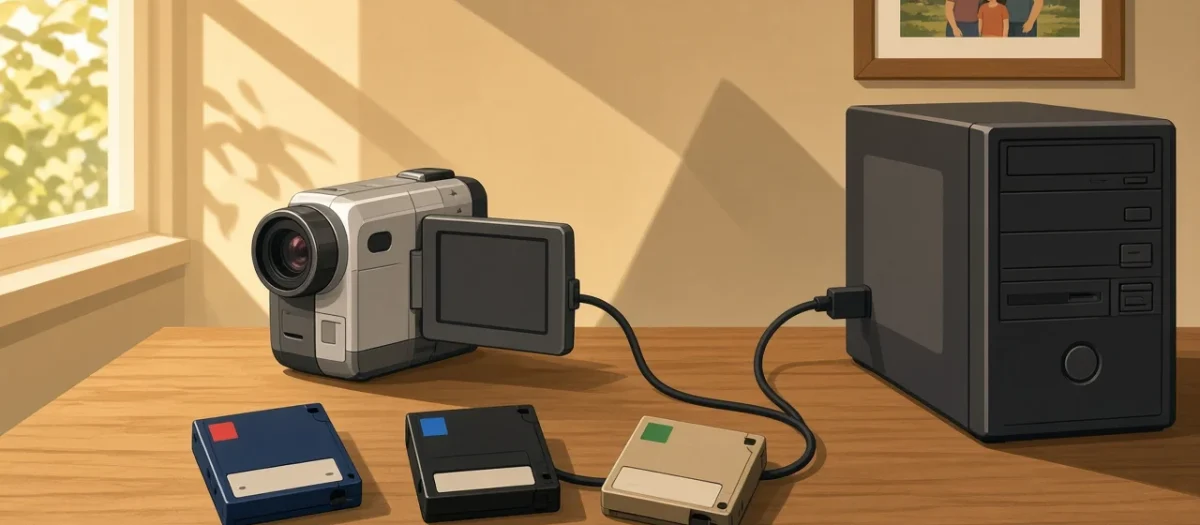
Quick answer: MiniDV (and Digital8) is digital, so you copy it over FireWire with no quality loss. In 2026 that means a Windows PC with a PCIe FireWire card and free capture software such as WinDV, or a Mac still on macOS 15 Sequoia or earlier, because macOS 26 Tahoe removed FireWire support. USB-to-FireWire adapters do not work for camcorders. Hi8 and Video8 are analogue: play them in a camcorder and capture the S-Video output with a USB video capture device, or play them in a Sony Digital8 camcorder that can read Hi8 and copy over FireWire. Either way you need a working camcorder or deck for the tape format.
Affiliate links: if you buy through the Amazon links on this page we may earn a small commission at no extra cost to you. Prices change, so check the current price on Amazon.
This guide is based on gearmath’s Windows 11 MiniDV capture guide (updated October 2026), the TidBITS report on macOS Tahoe, Sony’s support pages and Digital Camera World’s review of the Elgato Video Capture. We have not tested every card and camcorder combination.
Which route fits your tapes?
| Tape | Signal on tape | Best route | What you need |
|---|---|---|---|
| MiniDV | Digital (DV) | FireWire copy, lossless | MiniDV camcorder or deck, FireWire port, capture software |
| HDV (on MiniDV tapes) | Digital (MPEG-2) | FireWire copy | HDV camcorder or deck, FireWire, HDV-aware software such as HDVSplit |
| Digital8 | Digital (DV) | FireWire copy | Digital8 camcorder, FireWire |
| Hi8 and Video8 | Analogue | S-Video capture, or play in a Hi8-compatible Digital8 camcorder and copy over FireWire | Hi8 or Video8 camcorder, or a compatible Digital8 model |
MiniDV on Windows 11: the FireWire route
gearmath’s Windows 11 guide sets out the hardware that still works:
- A FireWire (IEEE 1394) port. On a desktop that means a PCIe FireWire card. gearmath says USB-to-FireWire adapters do not work for camcorder capture, so do not buy one for this.
- The right driver. Windows 11 normally uses its built-in “1394 OHCI Compliant Host Controller” driver. If the camcorder is not detected, gearmath suggests switching to Microsoft’s legacy 1394 driver.
- A 4-pin to 6-pin FireWire cable. Camcorders have the small 4-pin socket (Sony calls it i.LINK); PCIe cards have 6-pin sockets.
- The camcorder in VCR or Play mode, not Camera mode, with the tape rewound.
- Capture software. gearmath lists WinDV (free, copies the DV stream without re-encoding), DVMP Pro (paid, with extra tools) and HDVSplit for HDV tapes.
Plan your storage before you start: raw DV runs at about 13 GB per hour of tape, according to gearmath, so a box of 30 tapes needs roughly 400 GB. Keep the DV files as your master copy and make smaller MP4s from them for sharing.
- Syba PCIe FireWire card (two 1394b ports and one 1394a, TI chipset): check current price and buying options.
- 6 ft FireWire 400 cable, 6-pin to 4-pin: check current price.
Laptops and USB-only camcorders
Most modern laptops have no way to add a PCIe card, and a USB adapter will not work, so the practical choices are an older desktop, a laptop with an ExpressCard slot, or borrowing a PC. gearmath notes one exception: some Panasonic NV-GS camcorders can stream DV over USB 2.0 when set to “USB FUNCTION > Motion DV”. Check your camcorder’s manual for a similar setting.
MiniDV on a Mac: check your macOS version first
TidBITS reported on 19 September 2025 that macOS 26 Tahoe removed FireWire support: FireWire no longer appears in System Information, and devices connected through Apple’s Thunderbolt-to-FireWire adapter are not recognised. If you want to capture on a Mac, use one that is still on macOS 15 Sequoia or earlier, with Apple’s Thunderbolt-to-FireWire adapter (and a Thunderbolt 3 to Thunderbolt 2 adapter on newer Macs), or an older Mac with a built-in FireWire port.
| Computer | Works for MiniDV capture? |
|---|---|
| Windows 10 or 11 desktop with a PCIe FireWire card | Yes |
| Windows laptop with a USB-to-FireWire adapter | No (gearmath) |
| Mac on macOS 15 Sequoia or earlier with FireWire or Apple’s adapter | Yes |
| Mac on macOS 26 Tahoe | No (TidBITS) |
Hi8 and Video8: two options
Option 1: play Hi8 in a Digital8 camcorder and copy over FireWire
Many Sony Digital8 camcorders can play analogue Video8 and Hi8 tapes and send the picture out over i.LINK (FireWire) as DV, which then captures exactly like MiniDV. Not all of them can. Sony lists these Digital8 models as unable to play analogue 8mm or Hi8 tapes:
| Digital8 models that cannot play Hi8 or Video8 (Sony) |
|---|
| DCR-TRV130 |
| DCR-TRV140 |
| DCR-TRV250 |
| DCR-TRV260 |
| DCR-TRV265 |
| DCR-TRV280 |
If you are buying a second-hand Digital8 camcorder for this job, avoid those models and ask the seller to confirm it plays a Hi8 tape.
Option 2: S-Video into a USB capture device
Play the tape in any working Hi8 or Video8 camcorder and connect its S-Video output (sharper than the yellow composite lead) and the red and white audio to a USB video capture device. Digital Camera World’s review of the Elgato Video Capture describes a USB 2.0 device with S-Video and RCA inputs and guided software that records H.264 files at 640 x 480 (4:3) or 852 x 480 (16:9). It is the easy option, but the files are compressed. Archivists often prefer devices that capture uncompressed video, such as the I-O Data GV-USB2, with free tools like VirtualDub2, at the cost of a fiddlier setup and much larger files. Capture runs in real time: an hour of tape takes an hour.
Our guide to the best capture cards for VHS and retro consoles compares USB capture devices, and the same advice applies to Hi8.
Tips that save tapes
- Fast-forward and rewind each tape once before capture, to even out the tension.
- Clean the heads if the picture breaks up into blocks (MiniDV) or snow (Hi8), and stop if a tape squeals or sticks.
- Capture once, at full quality, then edit copies. Old tapes may not survive many more plays.
- Keep two copies of the finished files, on different drives.
Related guides
- How to digitise VHS tapes
- How to transfer VHS to digital cheaply
- Best capture cards for VHS and retro consoles
- How to capture gameplay from retro consoles
Sources: gearmath: How to capture MiniDV on Windows 11; TidBITS: Support for FireWire removed from macOS 26 Tahoe; Sony support: Digital8 models that cannot play 8mm or Hi8 tapes; Digital Camera World: Elgato Video Capture review.
FAQ
How do I transfer MiniDV to a computer in 2026?
Connect the camcorder in VCR mode to a FireWire port with a 4-pin to 6-pin cable and capture with software such as WinDV. On Windows that means a PCIe FireWire card; on a Mac, macOS 15 Sequoia or earlier.
Do USB to FireWire adapters work with camcorders?
No. gearmath’s Windows 11 guide says USB-to-FireWire adapters do not work for camcorder capture. Use a PCIe FireWire card in a desktop.
Does macOS Tahoe support FireWire?
No. TidBITS reported that macOS 26 Tahoe removed FireWire support, including through Apple’s Thunderbolt-to-FireWire adapter. Use a Mac on macOS 15 Sequoia or earlier.
How much space does MiniDV take on a computer?
About 13 GB per hour of tape as raw DV, according to gearmath.
Can a Digital8 camcorder play Hi8 tapes?
Most can, but Sony lists the DCR-TRV130, TRV140, TRV250, TRV260, TRV265 and TRV280 as unable to play analogue 8mm or Hi8 tapes.